Enter the address of the page containing your work and choose which membership tiers can open it. TierKey creates a link that checks membership first. Follow these steps to create your first link and share it on Patreon.
These screenshots use the English interface. Match each number to its explanation. Select an image to enlarge it. Names, URLs and member records are examples.
What clicking, pasting, URLs and tiers mean
To click, point at a button or text and press the left mouse button once. On a phone, tap it once. The menu is on the left on a computer and at the top on a phone. Swipe the phone’s top menu sideways to see any hidden items.
To paste: on Windows, hold Ctrl and press V. On a Mac, hold ⌘ and press V. On a phone, touch and hold the text field, then choose Paste. Copy remembers some text temporarily; paste inserts that text where you are typing.
- Destination URL
- A URL is the address of a page on the internet. Use the sharing link for your work on a service such as MEGA. You do not upload the work to TierKey.
- The TierKey link you share
- This is the membership-check link you create in TierKey. Put this link in your Patreon post. Fans pass the membership check before going to the destination.
- Tier
- A tier is a membership plan on your own Patreon, such as your $5 monthly plan. It is separate from Basic / Pro, which you use to access TierKey. Your fans do not need a TierKey Basic / Pro subscription.
Get ready
- Join TierKey Basic or Pro using the Patreon account that owns your creator page. Open Plan & connection → View Patreon plans to see the plans. If you have already joined, continue to the next step.
- Sign in to TierKey with that same Patreon account. To connect again, open Plan & connection, press Connect with Patreon, and allow the connection on Patreon.
- If you see Connect your Patreon campaign, select your own creator page under Campaign and press Connect campaign. Skip this step if your page is already connected.
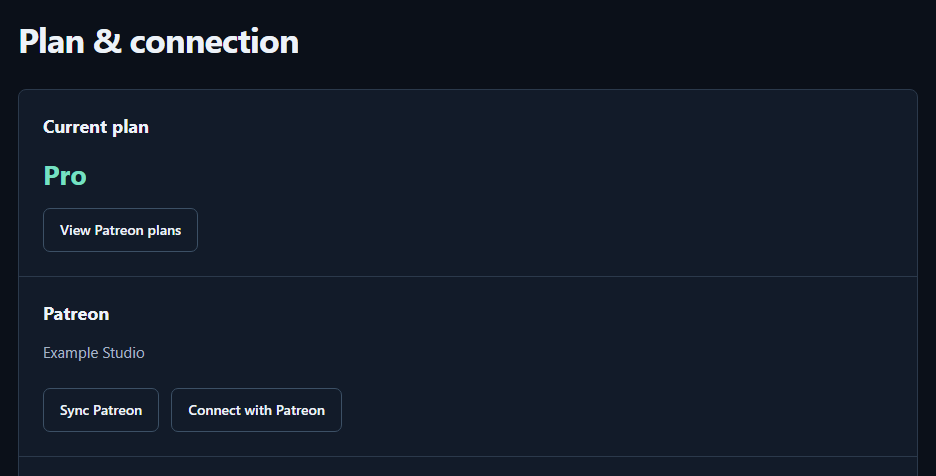
- View Patreon plansFirst join TierKey Basic or Pro using your Patreon creator account. Skip this if you have already joined.
- Connect with PatreonSign in and connect with that same account. Allow the connection on Patreon, then return to TierKey.
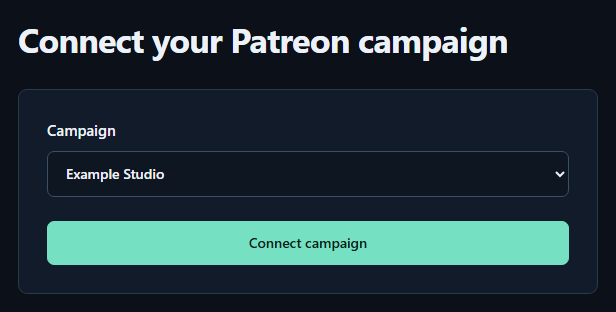
- CampaignIf this screen appears, select your own Patreon creator page.
- Connect campaignPress to connect and load your tiers. Skip this if your page is already connected.
Create your first link
Open Links in the menu and press New link. Fill in or select these four items from top to bottom.
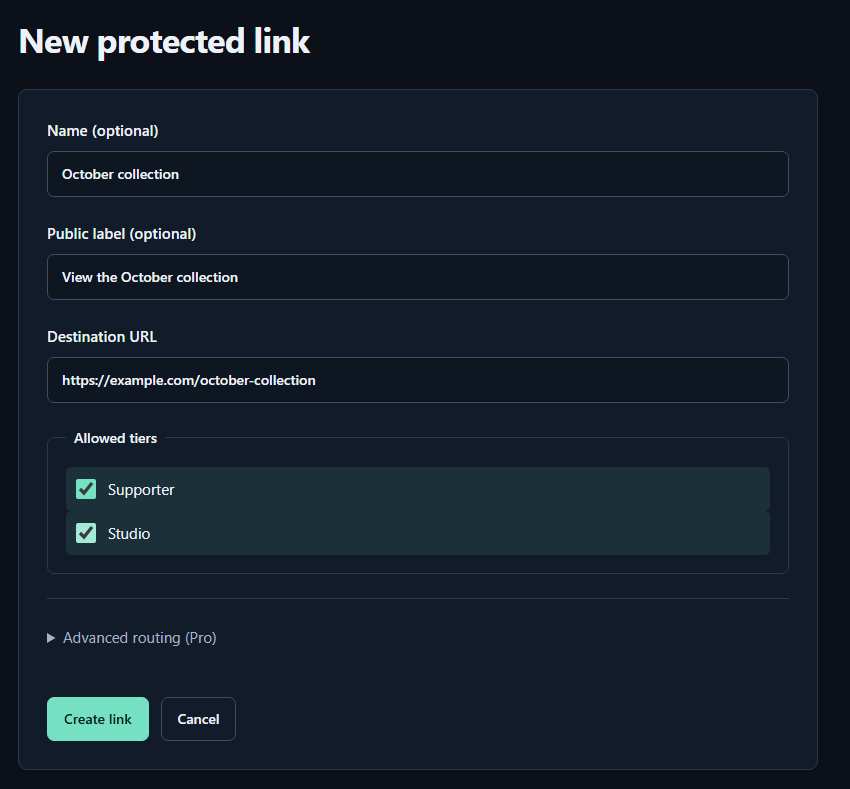
- Name (optional)A name for you. Fans cannot see it.
- Public label (optional)A name shown to fans. Both name fields may be left empty.
- Destination URLPaste the complete sharing URL for your work. The example.com address in the image is only an example.
- Allowed tiersTick every tier that may view the work. Select higher tiers yourself too.
- Create linkPress to save. You can leave the Pro routing settings closed for your first link.
- Name (optional)
- A name to help you find this link, such as “October collection”. Fans cannot see it. You may leave it empty.
- Public label (optional)
- A name shown to fans on the membership-check page, such as “View the October collection”. You may leave it empty.
- Destination URL
- Use “Copy sharing link” or a similar option on the service hosting your work, then paste that address here. It must start with https://. Keep the whole address, including any part after # in a MEGA link.
- Allowed tiers
- Tick the box next to each membership tier that may view the work. Choose at least one. To include higher tiers, tick those too. A higher price alone does not grant access automatically.
For your first link, you can leave Advanced routing (Pro) closed and press Create link. When you see Link saved. and the link appears in the list, it is ready.
Copy and share the link
- In Links, find the row for the link you want to share and press Copy. When the button changes to Copied, the link has been copied.
- Open the Patreon post editor. Click where you want the link to appear in the post and paste it. Use the TierKey link you just copied, rather than the original destination address.
- Check the post and its audience, then publish it on Patreon. Fans open the link and use Continue with Patreon to sign in to Patreon. If their tier is allowed, they can press Continue to destination to open your work.
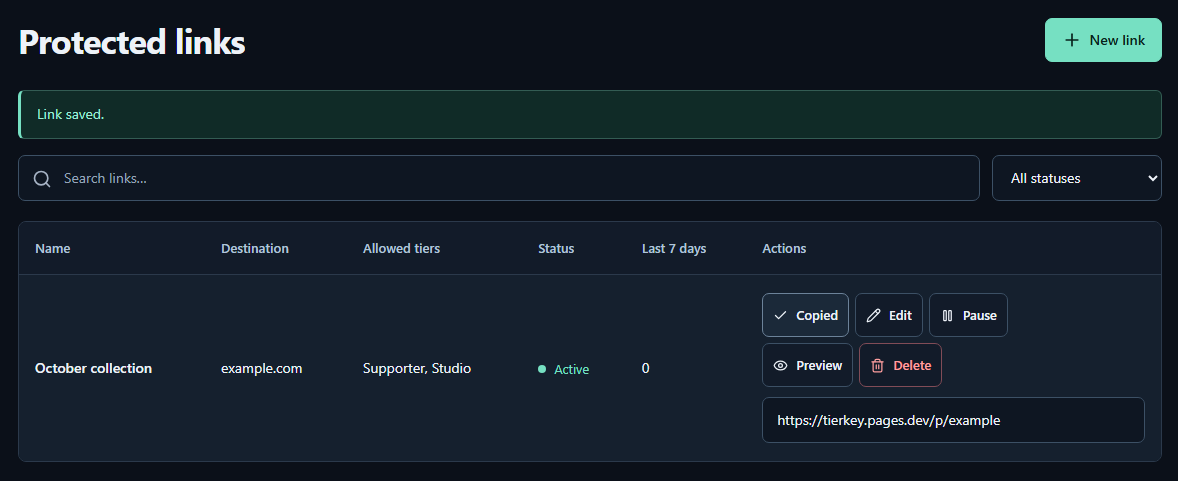
- CopyPress Copy in the list. Copied means the link is on your clipboard.
- Fixed URLPaste this TierKey link into your Patreon post. Share this link, rather than the original address of your work.
Preview shows what the membership-check page looks like. It does not check membership. To test access to the work itself, open the shared link with a fan account that belongs to an allowed tier.
Manage your links
In Links, use the buttons on the row of the link you want to change.
- EditChange the destination or tiers. Your shared link stays the same after saving.
- PauseTemporarily stop forwarding. The button becomes Resume so you can restart it.
- DeleteDeletion cannot be undone. Use Pause if you only want to stop access for a while.
- Edit
- Change the destination or allowed tiers, then press Save changes. The shared TierKey link stays the same, so you do not need to replace it in your posts.
- Pause
- Temporarily stop this TierKey link from sending fans to the destination. Use this if you plan to enable it again later.
- Resume
- Enable a paused link again. The same link will work.
- Delete
- Permanently remove this TierKey link. You cannot undo this, and the link in your posts will stop working. The work stored on MEGA or another service is not deleted.
Access history
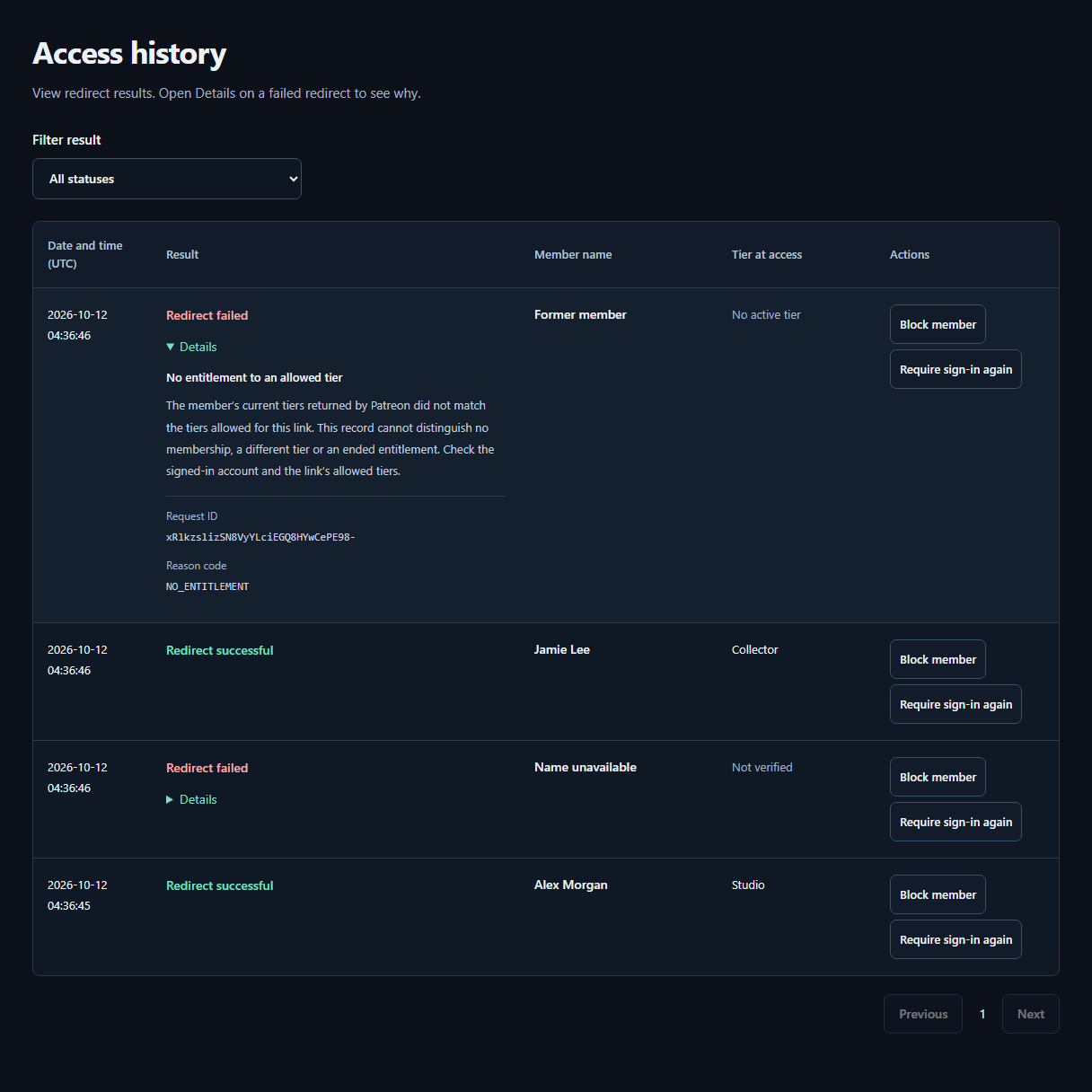
- ResultCheck whether the redirect succeeded or failed. The tier recorded at access appears beside the member’s Patreon display name.
- DetailsOpen Details on a failed row for the reason and next steps. A failure alone does not mean the visitor is not a member.
Open Access history to see when links were opened and whether access succeeded. On Pro, use Filter result to choose which outcomes to show. History is kept for 7 days on Basic and 90 days on Pro.
Results are Redirect successful or Redirect failed. Visits before sign-in and checks before redirecting are excluded. Open Details on a failed row for the reason and next steps. A failure can also mean a connection problem or a paused link, not just ineligibility. Success means TierKey issued the redirect; it does not confirm that the destination loaded or a download finished.
Times are in UTC. Convert them to your local time if needed. Each member’s Patreon display name is followed by the tiers recorded at access. No active tier is different from Not verified.
Use Pro features
Advanced routing (Pro)
- To send different tiers to different pages, open Advanced routing (Pro) in the create or edit form and tick the box inside. Keep the normal Destination URL field filled in as well.
- Enter a destination URL for every selected tier. If more than one tier matches, the smaller Priority number wins. For example, 1 comes before 2. Then create or save the link.
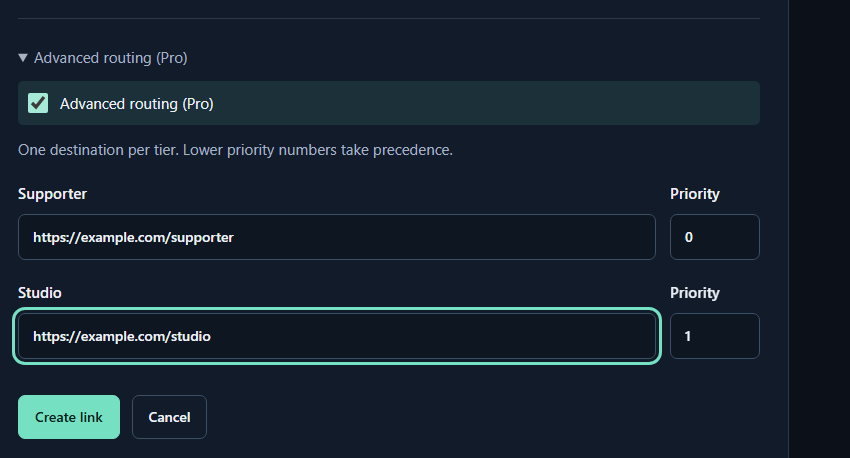
- Advanced routing (Pro)On Pro, open the advanced settings in the link editor and tick the box.
- Destination URLEnter a destination URL for each allowed tier.
- PriorityFor a member with multiple tiers, the lower number wins. Press Create link or Save changes when finished.
Security
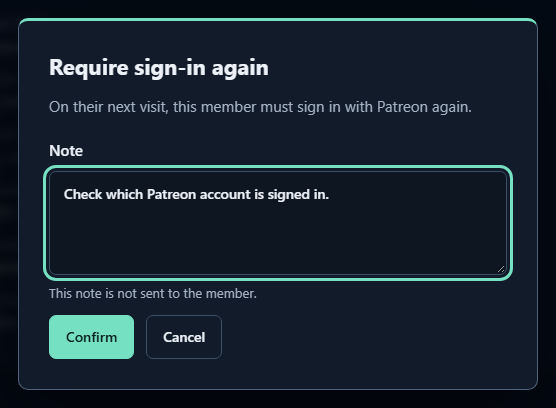
- NoteThis Pro dialog opens from access history. The note is for your records and is not sent to the member.
- ConfirmConfirm to require Patreon sign-in on the member’s next visit. Notes when blocking a member are internal too.
In Access history, Require sign-in again makes that member sign in through Patreon again on their next visit. Block member stops that member from using your TierKey links.
The Note is for your own records. It is never sent as a Patreon message. To undo a block, open Security and press Unblock member for that member.
Treat notices in Security as a reason to check, not as proof of redistribution. Travel or shared networks can also trigger them. Blocking does not disable a destination URL the member already knows.
If something goes wrong
I cannot press New link
Open Plan & connection. Check that Current plan shows Basic or Pro and that your Patreon is connected. If you just joined, press Sync Patreon, then reopen Links.
The tier I want is missing
Check that the correct creator page is connected. Only paid tiers can be selected. After adding or changing a tier on Patreon, press Sync Patreon in Plan & connection.
A member cannot open the work
Check that the fan signed in with the Patreon account they used to join, and that their tier is included in the link’s Allowed tiers. Also check that the link is not paused.
Membership is temporarily unavailable
Wait a little, then open the link again. TierKey could not check with Patreon at that moment; this does not mean the membership has ended. If it keeps happening, contact support through Help.
If you still need help, describe the action you took and what appeared. Include the Request ID if one is displayed. Do not send passwords or private destination URLs.
Contact & reportWhat TierKey can and cannot protect
TierKey checks membership before redirecting a visitor. It does not host files or change the destination service’s permissions. An eligible fan can see the destination URL and may copy files. A destination URL that has already leaked must be disabled or replaced at the storage service. TierKey cannot recall saved copies.