A password asks whether a visitor knows a secret. An expiry date asks whether a link is still within its lifetime. Patreon membership verification asks whether the signed-in account currently has an allowed entitlement. These controls answer different questions; choose them according to the access you actually want to manage.
Compare the conditions, not just the number of clicks
Scroll the table sideways to see all columns.
| Control | What it checks | What sharing can still do |
|---|---|---|
| Bare share link | Possession of the URL | The recipient can pass the URL to someone else. |
| Shared password | Possession of the password | The link and password can be shared together. |
| Expiring link | The provider’s configured deadline | Anyone otherwise permitted may use it before expiry. |
| Patreon check through TierKey | The signed-in account’s entitled tiers | An eligible member can still copy the final URL or file. |
| Named storage permission | The account allowed by the storage service | Needs separate permission management; saved copies remain. |
Match the control to the job
For a temporary delivery window, an expiry can be useful. For an ongoing Patreon benefit, checking membership can better match who should enter. If you want only named Google accounts to open a folder, configure that restriction in Drive as well.
Availability of passwords, expiry dates and account restrictions depends on the provider and plan. Check the controls shown in your own account. Adding several prompts does not automatically fix a destination that remains accessible through an older public URL.
Combine controls only when the fan can complete both
- Choose storage permissions first. If Drive is Restricted, an authorized Patreon member still needs the relevant Google permission.
- Put the complete destination into TierKey and select the allowed creator tiers. Keep passwords and provider-specific key handling consistent with your instructions.
- Publish the TierKey link in Patreon. If you require an extra destination password, explain where legitimate members can obtain it without publishing it openly.
- Test using a member’s actual route and a separate account outside the allowed tiers. Confirm the destination opens after the membership check, not only that a redirect occurs.
These screenshots use the English interface. Match each number to its explanation. Select an image to enlarge it. Names, URLs and member records are examples.
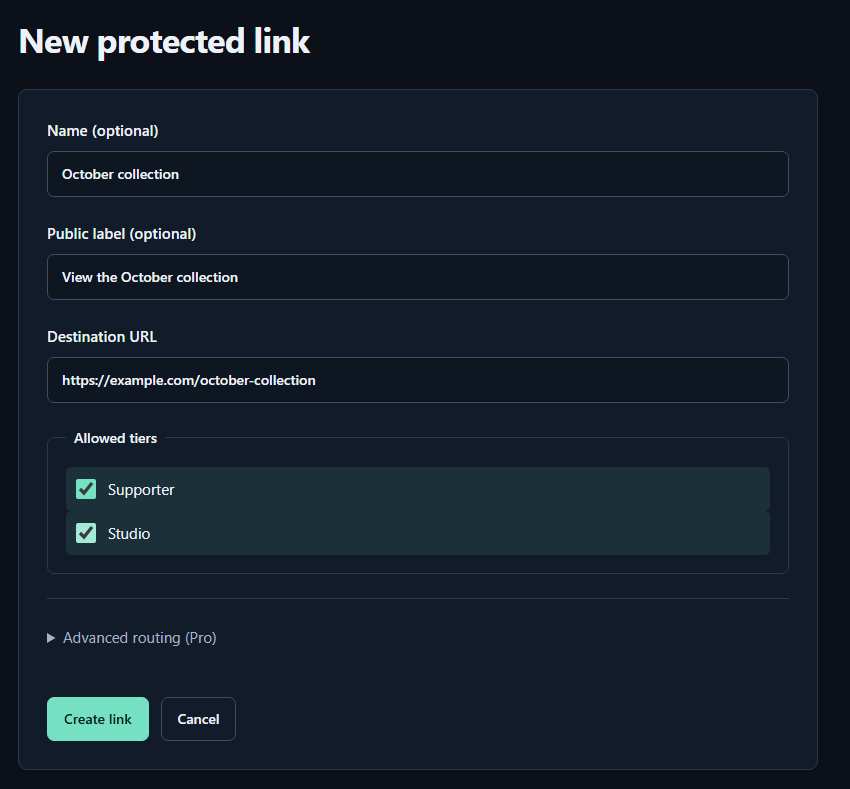
- Name (optional)A name for you. Fans cannot see it.
- Public label (optional)A name shown to fans. Both name fields may be left empty.
- Destination URLPaste the complete sharing URL for your work. The example.com address in the image is only an example.
- Allowed tiersTick every tier that may view the work. Select higher tiers yourself too.
- Create linkPress to save. You can leave the Pro routing settings closed for your first link.
If the destination has already leaked
Adding a password or a membership check to a new entrance does not revoke a different, older entrance. Use the storage service to disable the exposed share or remove the relevant permissions, prepare the replacement and test the old URL separately.
In Drive, check both general access and individual or inherited permissions. “Restricted” is not a promise that every previous collaborator has been removed. No link setting can delete a file already downloaded to someone else’s device.
Keep a small distribution checklist
- Record the intended audience, storage permissions, any expiry and where members find the current link. Record sensitive destination details privately.
- After changing an allowed tier, password, expiry or destination, test a legitimate member’s journey again. Inspect access-history details when a check fails.
- Use Basic for a common destination shared by allowed tiers, or Pro when one TierKey link must choose destinations by tier. Fans do not need to buy a TierKey plan.