TierKey can check Patreon membership before sending a fan to a Google Drive file or folder. Drive still decides whether that fan can open the destination. Configure both parts and test them together so members do not finish the Patreon check only to see an access-request screen.
Decide how Google Drive will grant access
Drive’s “Restricted” setting requires separate Google access. “Anyone with the link” allows direct access to people who know that URL. TierKey does not grant Google permissions or match Patreon members to Google accounts.
For a download destination, use the sharing role you actually need, such as Viewer, rather than giving fans editing access. Workspace policies may limit external sharing. Check the current choices in your own Drive account.
Copy the destination, then test Drive separately
Copy the sharing URL for the intended file or folder and open it with a separate test account or signed-out session, according to your chosen permissions. If Drive requires an invitation, provide that independently; a successful TierKey redirect will not remove that requirement.
If the old Drive URL has leaked
Review general, individual and inherited access before you replace the distribution route. A new TierKey link alone cannot revoke access to an already-known Drive URL. After changing sharing or preparing a replacement item, verify the old route and update the destination stored in TierKey.
Add the link and allowed tiers in TierKey
- Join TierKey Basic or Pro using the Patreon account that owns your creator page. Open Plan & connection → View Patreon plans to see the plans. If you have already joined, continue to the next step.
- Sign in to TierKey with that same Patreon account. To connect again, open Plan & connection, press Connect with Patreon, and allow the connection on Patreon.
- If you see Connect your Patreon campaign, select your own creator page under Campaign and press Connect campaign. Skip this step if your page is already connected.
Open Links in the menu and press New link. Fill in or select these four items from top to bottom.
- Name (optional)
- A name to help you find this link, such as “October collection”. Fans cannot see it. You may leave it empty.
- Public label (optional)
- A name shown to fans on the membership-check page, such as “View the October collection”. You may leave it empty.
- Destination URL
- Use “Copy sharing link” or a similar option on the service hosting your work, then paste that address here. It must start with https://. Keep the whole address, including any part after # in a MEGA link.
- Allowed tiers
- Tick the box next to each membership tier that may view the work. Choose at least one. To include higher tiers, tick those too. A higher price alone does not grant access automatically.
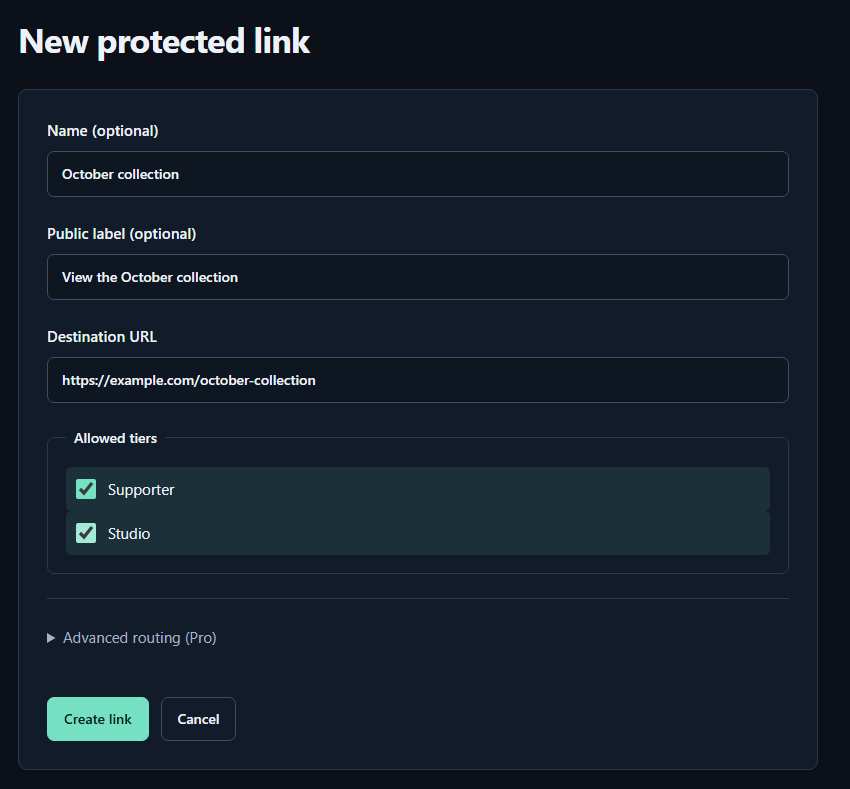
- Name (optional)A name for you. Fans cannot see it.
- Public label (optional)A name shown to fans. Both name fields may be left empty.
- Destination URLPaste the complete sharing URL for your work. The example.com address in the image is only an example.
- Allowed tiersTick every tier that may view the work. Select higher tiers yourself too.
- Create linkPress to save. You can leave the Pro routing settings closed for your first link.
For your first link, you can leave Advanced routing (Pro) closed and press Create link. When you see Link saved. and the link appears in the list, it is ready.
How to use TierKey: a screenshot guideTest before publishing
Preview checks your configuration; it does not prove that a fan can sign in. Ask a consenting fan with an allowed tier to test the whole flow. Also test a non-member or an account without an allowed tier. A temporary Patreon error is not proof that someone is a non-member. Check the failure details in access history.
What TierKey can and cannot protect
TierKey checks membership before redirecting a visitor. It does not host files or change the destination service’s permissions. An eligible fan can see the destination URL and may copy files. A destination URL that has already leaked must be disabled or replaced at the storage service. TierKey cannot recall saved copies.