A paid-only Patreon post does not automatically protect a download URL copied out of that post. If the destination accepts anyone with the link, a repost can become another route to your files. Start by dealing with the exposed destination, then add membership checks to the links you publish next.
Check what has actually been exposed
Identify the affected post, the destination service and the URL that was shared. A reposted title, an exposed link and an uploaded copy of a file are different problems. Keep the page address and the time you found it for your own records. This guide focuses on exposed external links; it does not remove posts from Pawchive or other sites.
Stop the old route before publishing a replacement
- Stop sharing the exposed destination using the storage service’s controls. Changing a Patreon post alone does not disable its old external URL.
- Prepare a new destination. In Drive, removing general access does not necessarily remove individual or inherited permissions; review those separately.
- Open the old destination in a separate, signed-out browser session and confirm it no longer grants the access you meant to remove.
- Tell legitimate members through Patreon where the replacement link will appear. Check that they can reach the new destination before retiring any temporary alternative.
Add membership checks to future visits
Store the new destination in TierKey and publish the TierKey link in your Patreon post. Visitors sign in to Patreon; TierKey checks the allowed tiers before forwarding them. If that TierKey link is reposted, it still leads through the membership check. If an eligible member shares the destination itself, you may need to replace that destination again.
Add the link and allowed tiers in TierKey
- Join TierKey Basic or Pro using the Patreon account that owns your creator page. Open Plan & connection → View Patreon plans to see the plans. If you have already joined, continue to the next step.
- Sign in to TierKey with that same Patreon account. To connect again, open Plan & connection, press Connect with Patreon, and allow the connection on Patreon.
- If you see Connect your Patreon campaign, select your own creator page under Campaign and press Connect campaign. Skip this step if your page is already connected.
Open Links in the menu and press New link. Fill in or select these four items from top to bottom.
- Name (optional)
- A name to help you find this link, such as “October collection”. Fans cannot see it. You may leave it empty.
- Public label (optional)
- A name shown to fans on the membership-check page, such as “View the October collection”. You may leave it empty.
- Destination URL
- Use “Copy sharing link” or a similar option on the service hosting your work, then paste that address here. It must start with https://. Keep the whole address, including any part after # in a MEGA link.
- Allowed tiers
- Tick the box next to each membership tier that may view the work. Choose at least one. To include higher tiers, tick those too. A higher price alone does not grant access automatically.
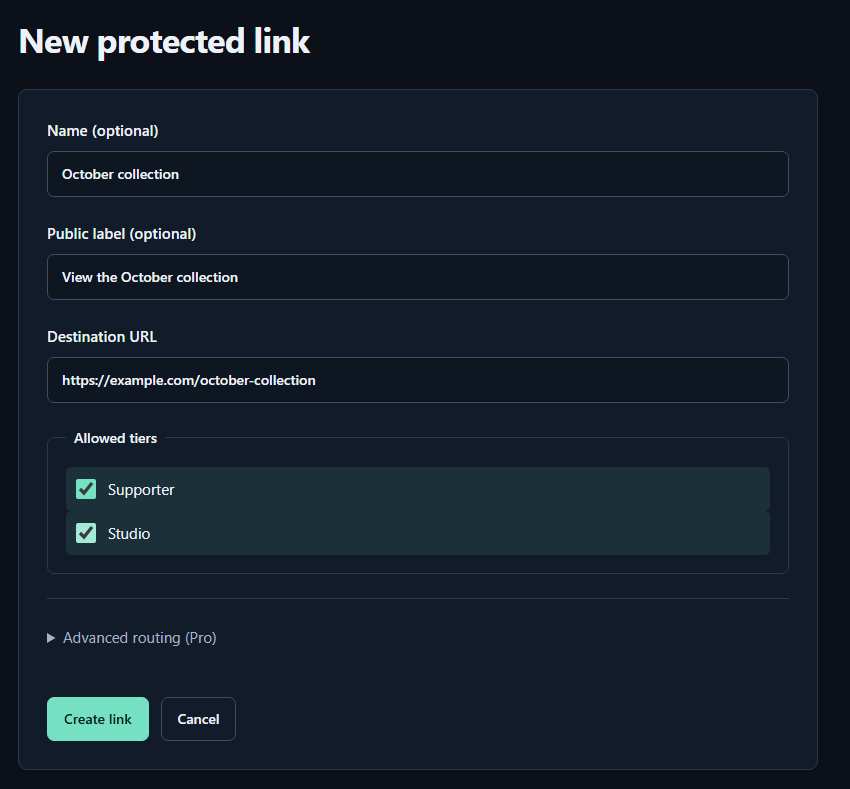
- Name (optional)A name for you. Fans cannot see it.
- Public label (optional)A name shown to fans. Both name fields may be left empty.
- Destination URLPaste the complete sharing URL for your work. The example.com address in the image is only an example.
- Allowed tiersTick every tier that may view the work. Select higher tiers yourself too.
- Create linkPress to save. You can leave the Pro routing settings closed for your first link.
For your first link, you can leave Advanced routing (Pro) closed and press Create link. When you see Link saved. and the link appears in the list, it is ready.
How to use TierKey: a screenshot guideTest before publishing
Preview checks your configuration; it does not prove that a fan can sign in. Ask a consenting fan with an allowed tier to test the whole flow. Also test a non-member or an account without an allowed tier. A temporary Patreon error is not proof that someone is a non-member. Check the failure details in access history.
What TierKey can and cannot protect
TierKey checks membership before redirecting a visitor. It does not host files or change the destination service’s permissions. An eligible fan can see the destination URL and may copy files. A destination URL that has already leaked must be disabled or replaced at the storage service. TierKey cannot recall saved copies.