Start by listing which files each Patreon tier should receive. Then make the post audience, TierKey’s allowed tiers and the destination permissions agree. A higher pledge amount is not a reliable substitute for selecting the right tier. The tiers in this guide belong to your creator page; Basic and Pro are the separate TierKey service plans.
Write down the access rules before creating links
This example uses three fictional creator tiers. Decide whether a higher tier should include lower-tier files, then explicitly include those tiers on each relevant link. Do not rely on prices or tier names to establish inheritance.
Scroll the table sideways to see all columns.
| Download collection | Allowed creator tiers | Destination |
|---|---|---|
| Sketches | Sketch, Studio, Archive | Sketch folder |
| Full-resolution files | Studio, Archive | Full-resolution folder |
| Archive package | Archive | Archive folder |
Use one destination when several tiers get the same files
A TierKey Basic link can have one destination and several allowed tiers. For the sketch collection above, select all three tiers and use the sketch folder as the destination. For the full-resolution collection, make another link for Studio and Archive.
In Patreon, select the intended post audience as well. Restricting the post protects its visibility; the TierKey conditions govern who may follow the external link. A direct link to the underlying folder still follows the storage service’s rules.
These screenshots use the English interface. Match each number to its explanation. Select an image to enlarge it. Names, URLs and member records are examples.
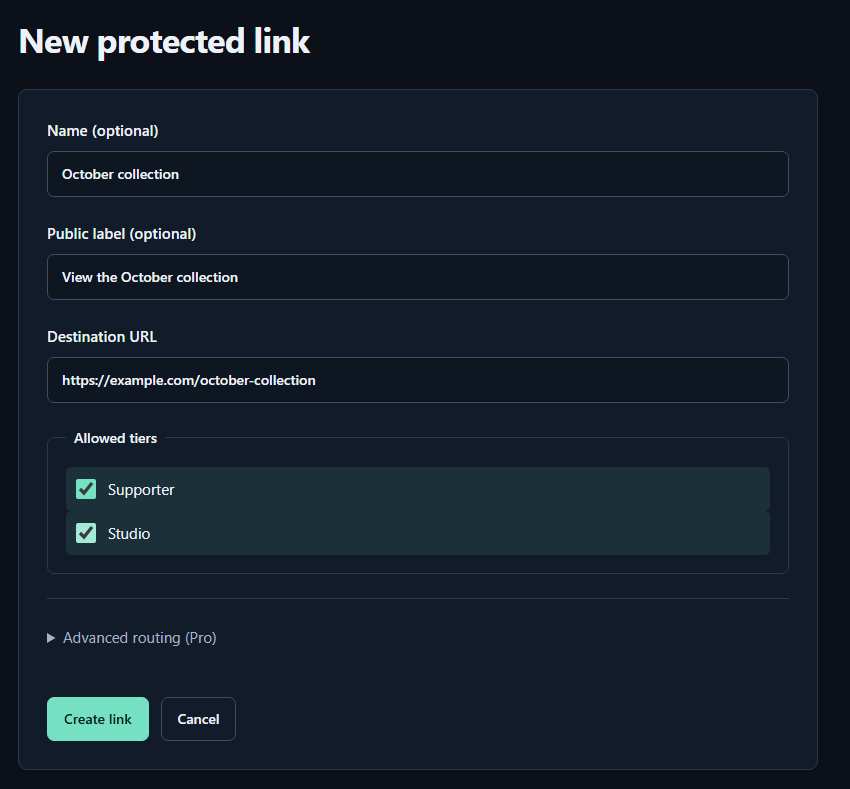
- Name (optional)A name for you. Fans cannot see it.
- Public label (optional)A name shown to fans. Both name fields may be left empty.
- Destination URLPaste the complete sharing URL for your work. The example.com address in the image is only an example.
- Allowed tiersTick every tier that may view the work. Select higher tiers yourself too.
- Create linkPress to save. You can leave the Pro routing settings closed for your first link.
Use Pro routing when one shared link needs different destinations
Pro changes where a matching visitor is sent. It does not assemble several folders, grant Drive access or calculate benefits from how much a fan paid.
- In the link settings, enable tier-based routing and add a destination rule for each intended creator tier.
- For each rule, select the exact tier, enter the complete destination URL and set its priority. Lower priority numbers are checked first when multiple entitled tiers match.
- Check that every tier you intend to admit has a suitable rule. Do not assume an unmatched visitor will receive a default destination.
- Save, then verify the route for each allowed tier. If a folder should contain lower-tier benefits too, prepare that content deliberately at the destination.
These screenshots use the English interface. Match each number to its explanation. Select an image to enlarge it. Names, URLs and member records are examples.
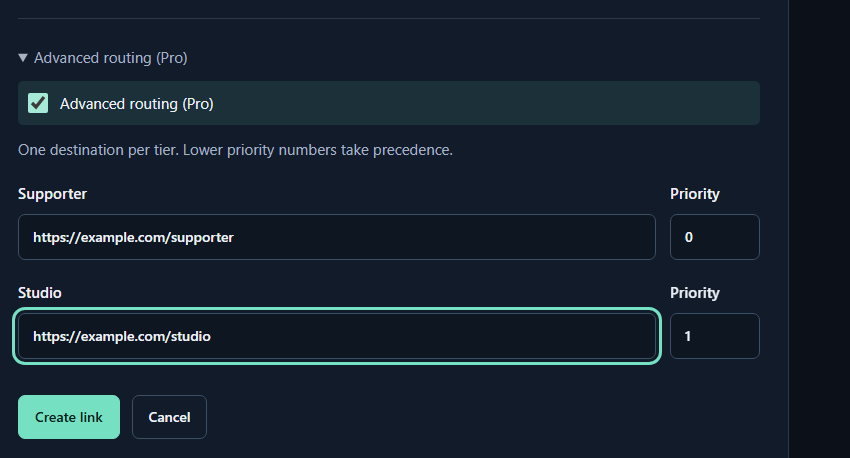
- Advanced routing (Pro)On Pro, open the advanced settings in the link editor and tick the box.
- Destination URLEnter a destination URL for each allowed tier.
- PriorityFor a member with multiple tiers, the lower number wins. Press Create link or Save changes when finished.
Check the audience and destination together
The screenshots use an English interface with sample data. Use the tier names from your own connected campaign, not the example labels.
- Ask consenting members from the intended tiers to open the shared link and confirm the actual folder or file, not just a successful redirect.
- Test a lower tier that should be excluded and a non-member. Read failure details if a result differs from your plan.
- When a higher-tier member reports a lock, check the tier they actually joined, the post audience and the link rules. Paying extra without changing tier does not establish the intended access.
Review links when your Patreon tiers change
Keep a simple list of each shared link, allowed tiers and destination. When you add, replace or retire a tier, review both Patreon posts and TierKey rules. A familiar display name does not guarantee that a newly created tier is the same tier.
After updating a destination, a TierKey link can remain the same. If the old destination URL has leaked, revoke that route at the storage service too. A rules change in TierKey does not disable direct bookmarks to the old folder.