When distributing Patreon rewards through Dropbox, check both the sharing link and the people already invited to the file or folder. Viewer access, editing rights and download controls have different effects. A Patreon membership check can manage the route into a reward, but does not replace those Dropbox permissions.
Check what each permission actually allows
Scroll the table sideways to see all columns.
| Setting | Purpose | Limit |
|---|---|---|
| Viewing link | Let recipients open the shared reward. | Viewing does not mean copying is impossible. |
| Editor access | Let collaborators change shared files. | Ordinary reward recipients rarely need editing rights. |
| Direct invitation | Give a named account access. | Shared-link restrictions do not remove that account’s existing rights. |
| TierKey entry | Verify Patreon membership and allowed tier before redirecting. | It does not change Dropbox permissions or track file downloads. |
Prepare a reward folder with only the required access
- Choose the file or release folder you intend to deliver. Keep working files and unrelated rewards outside that shared location.
- In Dropbox’s sharing settings, review the viewing link and the people with direct access. Avoid granting editing rights merely to deliver a finished file.
- Decide whether recipients should use a sharing link or named-account invitations. If Dropbox also requires sign-in or an invitation, explain that requirement separately from Patreon membership.
Match download controls to the reward you promised
If the reward is a downloadable file, test an actual download as a recipient. Disabling downloads can prevent legitimate delivery. Some file types cannot be previewed, and advanced link controls depend on the Dropbox plan and team settings available in your account.
Dropbox’s disabled-download setting restricts its download interface; it does not prevent every way of saving content. Link passwords and other link restrictions also leave directly invited accounts’ existing permissions intact. Review those accounts separately instead of assuming one link setting covers every access route.
Add Patreon verification to the browser entry
- Create a clearly named TierKey link for the Dropbox viewing URL and select the allowed Patreon tiers. Paste the complete URL you tested, including the sharing information Dropbox supplied.
- Share the TierKey entry in the Patreon post. Check that the post, attachment or another announcement does not also publish the direct Dropbox address unintentionally.
- Test with an eligible member through the final download. Separately test a non-member at the entry and a signed-out visitor at the direct Dropbox link. A temporary verification error alone does not establish non-membership.
These screenshots use the English interface. Match each number to its explanation. Select an image to enlarge it. Names, URLs and member records are examples.
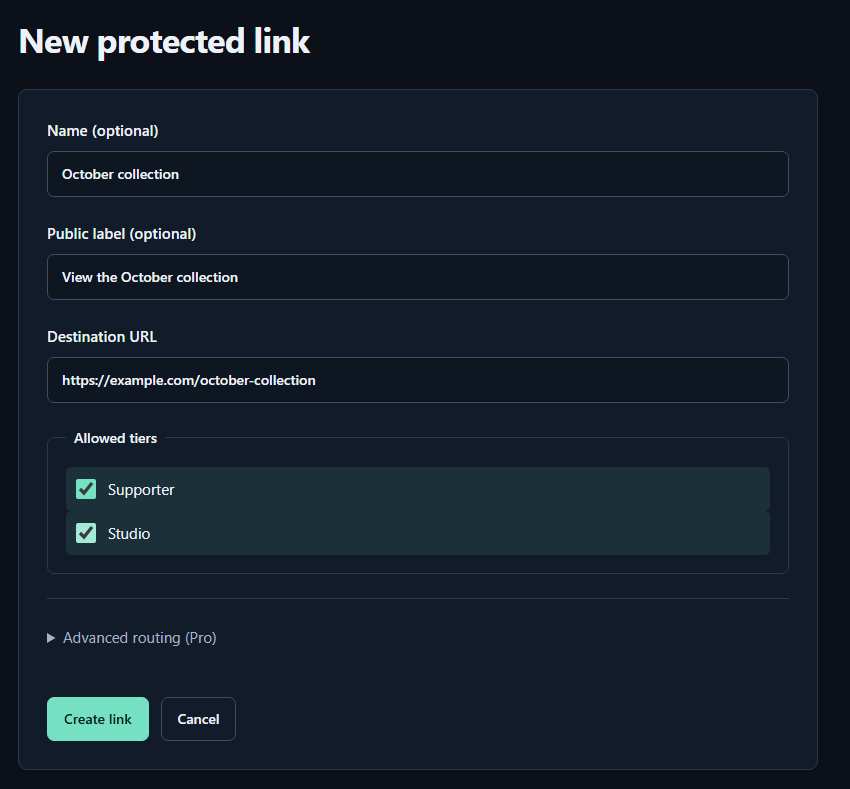
- Name (optional)A name for you. Fans cannot see it.
- Public label (optional)A name shown to fans. Both name fields may be left empty.
- Destination URLPaste the complete sharing URL for your work. The example.com address in the image is only an example.
- Allowed tiersTick every tier that may view the work. Select higher tiers yourself too.
- Create linkPress to save. You can leave the Pro routing settings closed for your first link.
Revoke an exposed Dropbox link at Dropbox
If a sharing link was exposed, review its sharing settings and delete that specific link when you need to stop it working. Review direct invitations separately. Creating a new TierKey entry does not disable an old Dropbox link; test the old address as well as the replacement route before notifying members.
Deleting a sharing link is different from deleting files or unsharing an entire collaborative folder. Choose the access change you intend, and keep your originals. Saved copies cannot be recalled through TierKey. Its history records entry checks and redirects, not direct Dropbox visits or completed file downloads.